

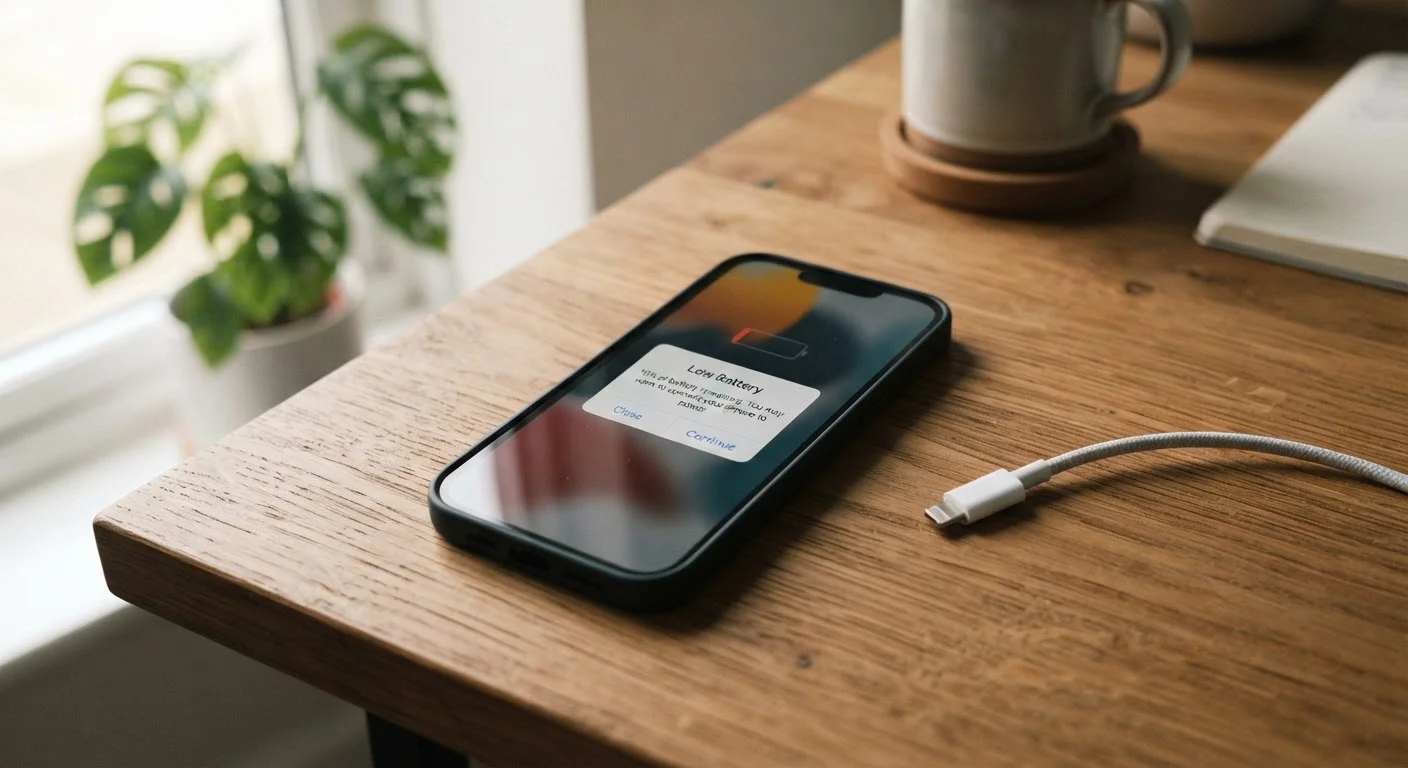
Key Takeaways
- Screen brightness is one of the single largest consumers of battery power on any smartphone.
- Apps running in the background can silently drain your battery even when you're not actively using your phone.
- Poor cellular or Wi-Fi signal forces your phone to work harder, consuming significantly more power.
- Battery capacity naturally decreases over time due to chemical aging inside lithium-ion cells.
- Simple adjustments to settings and habits can meaningfully extend how long a charge lasts.
Phone Battery Drain
Battery drain refers to how quickly your smartphone uses up its stored power. Every app, screen brightness level, wireless connection, and background process consumes a portion of that energy. When your phone loses charge much faster than expected, it usually means one or more of these demands are running higher than necessary.
Lithium-ion batteries — the type in virtually all modern smartphones — also degrade chemically with each charge cycle, meaning an older battery holds less total energy than it once did, regardless of usage habits.
The Screen Is Usually the Biggest Culprit
Your phone's display is almost always the heaviest single drain on its battery. The brighter your screen, the more power it pulls — and if your phone's auto-brightness is cranked up in a well-lit room, it can burn through a charge surprisingly fast. High refresh rate displays, now common on many newer phones, also use more power than standard 60Hz screens.
A practical first step is letting your phone manage brightness automatically, or manually dialing it down when you're indoors. Enabling a shorter screen timeout — so the display turns off after 30 seconds of inactivity rather than two minutes — is another simple habit that adds up over the course of a day.
Try Scheduled Charging Windows
Rather than topping up your phone constantly throughout the day, try charging in deliberate windows — such as overnight or during a lunch break. Keeping the battery between roughly 20% and 80% is widely considered gentler on lithium-ion cells over the long term, though convenience should still guide your actual habits.
Background Apps and Location Services Quietly Add Up
Many apps continue running behind the scenes long after you've stopped using them — syncing data, checking for notifications, or refreshing content. This background activity is often invisible but constantly draws power. Location services are a particular offender: apps that track your whereabouts continuously use both GPS hardware and mobile data, both of which are energy-intensive.
Reviewing your phone's battery usage screen (found in settings on both Android and iOS) shows exactly which apps are consuming the most power. For apps that don't need real-time updates, restricting background refresh and switching location access from "always on" to "only while using" can make a measurable difference. Our guide on hidden smartphone settings covers additional adjustments that improve day-to-day performance.
~80%
Battery health threshold worth monitoring
Apple publicly states that iPhone batteries are designed to retain up to 80% of original capacity after 500 complete charge cycles under normal conditions.
Up to 30%
Power savings from reducing screen brightness
Display energy consumption studies consistently identify screen brightness as responsible for a significant share of overall smartphone battery use, with dimming offering proportional savings.
Weak Signal Forces Your Phone to Work Harder
When your phone struggles to find a strong cellular or Wi-Fi signal, it repeatedly boosts its radio power trying to maintain a connection. This is one of the less obvious but most significant causes of unexpected drain — if you're in a building with spotty reception, your battery can drop noticeably faster than in an area with a strong signal.
If you're somewhere with consistently poor cellular coverage and you don't need mobile data, switching to Wi-Fi or enabling airplane mode temporarily prevents your phone from burning power chasing a signal. Similarly, turning off Wi-Fi when you're out and about — so your phone stops scanning for networks — can help in reverse.
5G Connectivity and Battery Use
5G connections can consume more power than 4G LTE, particularly when your phone is actively switching between 5G and older network bands. If battery life is a priority and you're not doing anything that requires 5G speeds, many phones allow you to manually select LTE-only mode in network settings. Check your phone's manual or settings menu for the specific option on your device.
Battery Age: What Every Smartphone Owner Should Know
Every time you charge your phone, the lithium-ion battery inside undergoes a chemical process that very gradually reduces how much energy it can store. After several hundred full charge cycles, a battery that once lasted all day may now fade by mid-afternoon — not because of what you're doing differently, but because the battery itself holds less total charge than it once did.
Both Android and iOS devices include a battery health indicator in settings. Checking it takes about 30 seconds and tells you whether aging cells are the core issue. If health is significantly degraded, the phone itself may not be the problem — replacing the battery is often far less expensive than replacing the device. This kind of wear is distinct from the sudden failure patterns you might watch for in other batteries; for context on how chemical wear differs from mechanical failure, see our piece on signs a car battery is failing.