

Key Takeaways
- Most smartphones have built-in accessibility and comfort settings that go largely undiscovered by everyday users.
- Features like one-handed mode, display zoom, and scheduled night mode require no technical skill to enable.
- Small setting adjustments can reduce eye strain, improve reach, and make navigation noticeably faster.
- Both Android and iOS offer these tools natively — no third-party apps required.
The Settings Most People Never Touch
Your phone ships with dozens of settings configured for a hypothetical average user — not necessarily for you. Manufacturers make reasonable defaults, but they can't anticipate your eyesight, your grip, your sleep schedule, or how you prefer to navigate a touchscreen. The good news is that most of the adjustments that would genuinely help you are already built in; they're just not advertised.
Whether you're using iOS or Android, the features below are available on the vast majority of modern smartphones. None of them require technical knowledge or third-party apps, and most take under two minutes to enable. If you've ever wondered whether your phone could feel a bit more yours, this is where to start. For a broader look at how the two platforms compare, see our guide on what the Android vs. iOS difference actually means for daily use.
Settings Paths Vary by Device
The exact location of these settings differs between iPhone and Android, and even between Android manufacturers like Samsung, Google, and OnePlus. If you can't find a setting where described, use your phone's built-in search function — typically a magnifying glass icon at the top of the Settings app — and search by the feature name. Most phones have had this search tool for several years.
Here are six settings worth turning on today:
Display Text Size and Bold Text
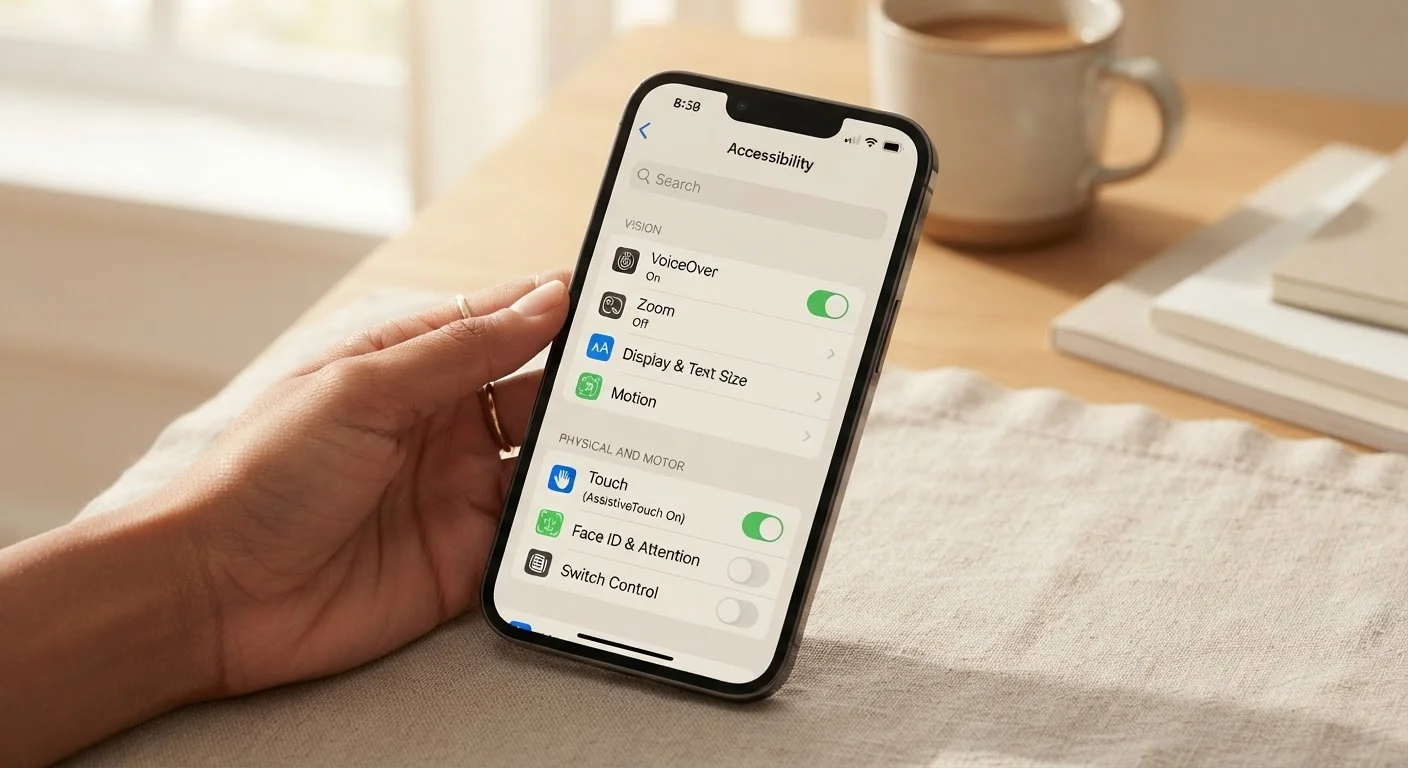
Buried inside Accessibility or Display & Brightness settings on most phones is a slider that controls how large text appears across the entire operating system — not just in one app. Increasing the text size by even one or two notches can reduce squinting significantly, especially for reading emails or web pages.
On iOS, this lives under Settings > Accessibility > Display & Text Size. On Android, look in Settings > Accessibility > Font Size, though exact paths vary by manufacturer. The Bold Text toggle on the same screen adds weight to all system fonts, improving contrast without changing the size.
Increasing text size by just one notch can meaningfully reduce daily eye strain.
One-Handed Mode
Modern smartphones have grown considerably in screen size, making it awkward — and sometimes uncomfortable — to reach the top of the display with one thumb. One-handed mode solves this by sliding the entire screen interface down into the lower half of the display temporarily.
On iPhones with Face ID, swipe down on the bottom edge of the screen to activate Reachability (enable it under Settings > Accessibility > Touch). Android manufacturers including Samsung and Google have their own versions, typically found in Settings > Advanced Features or Gestures. It takes under a minute to turn on and can make single-handed use feel much more natural.
One-handed mode brings hard-to-reach areas of your screen within comfortable thumb range.
Scheduled Night Mode (Reduce Blue Light)
Most phones offer a Night Mode or Night Shift setting that shifts the display toward warmer yellow tones in the evening. The intent is to reduce blue-wavelength light from the screen, which some research suggests may interfere with sleep quality if viewed close to bedtime — though scientists continue to study the extent of this effect.
Rather than toggling it manually, you can schedule it. On iOS: Settings > Display & Brightness > Night Shift > Scheduled. On Android: Settings > Display > Night Light or similar. Setting it to activate an hour before your usual bedtime is a low-effort change with potential comfort benefits.
Scheduling night mode means warmer screen tones kick in automatically — no manual reminders needed.
Back Tap or Quick Shortcut Gestures
iOS 14 introduced Back Tap — a feature that lets you double- or triple-tap the back of your iPhone to trigger a specific action, like taking a screenshot, going to the home screen, or launching an accessibility shortcut. It works reliably through most cases and requires zero extra hardware.
Find it under Settings > Accessibility > Touch > Back Tap. Android devices have their own gesture shortcut systems, including the ability to assign actions to button combinations or edge swipes, depending on the manufacturer. These shortcuts genuinely reduce the number of steps needed to reach commonly used functions.
Back Tap lets you trigger common actions with a simple double-tap on the rear of your iPhone.
Reduce Motion for a Calmer Screen
Phones use animated transitions — sliding, zooming, and parallax effects — throughout the interface. While visually polished, these animations can feel overwhelming for some users, or simply slow things down if you prefer snappy navigation. They can also cause discomfort for people sensitive to motion on screens.
Enabling Reduce Motion (iOS: Settings > Accessibility > Motion > Reduce Motion) replaces many of these with simpler, faster crossfade transitions. Android's equivalent is found in Developer Options (under About Phone, tap Build Number seven times to unlock), where you can set animation scales to 0.5x or off entirely. The result is a noticeably more responsive feel.
Turning down motion animations makes your phone feel faster and less visually cluttered.
Focus or Do Not Disturb Scheduling
Both iOS and Android allow you to schedule periods where notifications are silenced or filtered — without manually switching anything on or off. iOS calls this Focus (found in Settings > Focus); Android uses Do Not Disturb schedules under Settings > Sound or Digital Wellbeing.
You can set a Sleep focus to activate overnight, a Work focus during business hours, or a Personal mode for evenings — each allowing only specific contacts or apps to break through. This is a meaningful step toward using your phone intentionally rather than reactively. Pairing this with thoughtful home screen organisation makes the experience even smoother.
Scheduled Focus modes let you set boundaries with your phone once — then forget about it.
Small Changes, Noticeable Difference
None of these settings are dramatic overhauls — but collectively, they can change how your phone feels to use throughout the day. Easier-to-read text, a calmer screen, a more reachable interface, and fewer unwanted interruptions all add up.
Explore Accessibility Settings First
Don't let the label put you off — Accessibility settings aren't only for users with disabilities. Features like display zoom, text size, button shapes, and reduce transparency are useful for anyone who wants a cleaner or more comfortable interface. It's worth spending five minutes browsing this section on your phone to see what's available.
Once you've fine-tuned how your phone behaves, it's also worth considering how it's organised. Our guide to organising your phone so you can actually find things covers practical ways to structure your home screen and apps so navigation matches your habits. And if security is on your mind, smartphone security without the paranoia walks through the basics in plain language — no alarm required.