

Key Takeaways
- A factory reset erases your personal data, apps, and settings — returning the phone to its original state.
- Photos, contacts, and app data are not automatically recovered unless you backed them up first.
- The phone's built-in operating system and manufacturer apps are not removed by a reset.
- Backing up to your Google or Apple account takes only a few minutes and prevents data loss.
- A reset solves some problems — like persistent software bugs — but not others, like hardware faults.
What a Factory Reset Actually Does
A factory reset — sometimes called a master reset or erase all content and settings — restores your phone to the state it was in when it left the manufacturer. Think of it as a clean slate: everything you've added since you first switched the phone on gets removed, and the software is returned to its default configuration.
The process works by erasing the user data partition on your phone's storage. That partition is where your personal files, accounts, and downloaded apps live. The separate system partition — which holds the operating system — is left untouched, which is why the phone still works normally afterwards.
Before assuming a reset is necessary, try clearing the cache partition first — on Android this can resolve sluggishness without erasing any personal data.
Cache partition wipes target temporary system files rather than user data, making them a lower-risk first step that many users overlook.
If you're resetting before selling your phone, also remove your SIM card and any SD card — those aren't affected by the software wipe.
SIM cards retain contact and carrier information, and SD cards may hold personal files, neither of which a standard factory reset touches.
What Gets Deleted
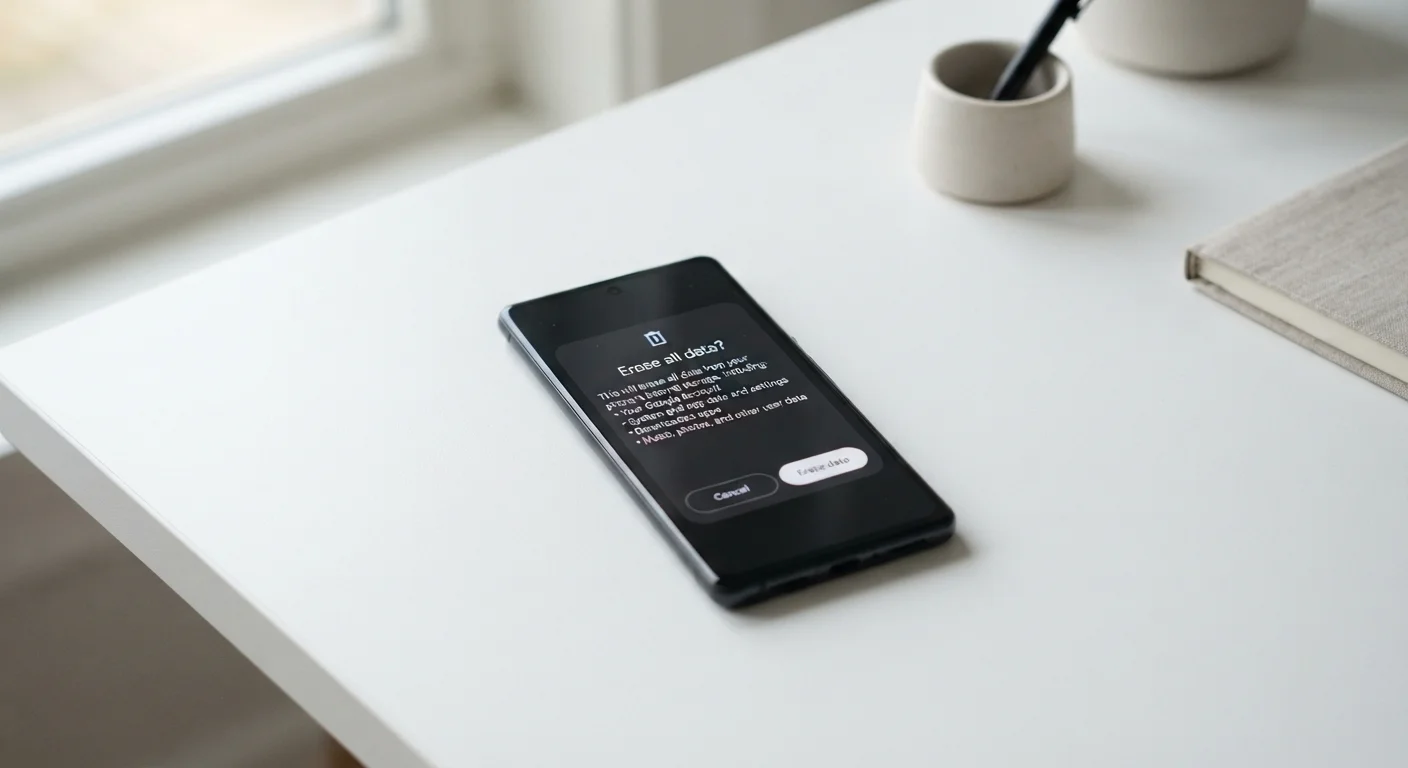
When you confirm a factory reset, the following are permanently removed from the device:
- All installed apps and any data they stored locally (game saves, login sessions, cached content)
- Photos and videos saved to the phone's internal storage
- Contacts stored only on the device (not synced to an account)
- Text messages and call history
- Wi-Fi passwords, Bluetooth pairings, and customised settings (wallpapers, notification preferences, accessibility settings)
- Downloaded files — documents, music, podcasts stored locally
- Accounts linked to the phone, such as your Google or Apple ID sign-in
Deletion Is Immediate and Permanent
Once you confirm a factory reset, data removal begins instantly — there is no undo button or recycle bin. Standard data recovery tools cannot reliably retrieve data from modern encrypted smartphones after a reset. Treat everything on the deletion list as gone the moment you tap confirm.
What Stays on the Phone
A factory reset is thorough, but it doesn't touch everything. The following remain after the process completes:
- The operating system (Android or iOS) at whatever version was installed
- Pre-installed manufacturer apps (sometimes called bloatware) that came with the device
- The phone's firmware — the low-level software that controls hardware components
One important note for Android users: if your phone has a removable SD card, data on that card is usually not erased during a standard reset unless you specifically select that option. Check the reset menu carefully before proceeding.
A Note on Data Encryption
Modern iPhones and most Android phones manufactured in the past several years encrypt user data by default. When you factory reset an encrypted phone, the encryption keys are also discarded, making the erased data practically unrecoverable. This is particularly important to understand when resetting a phone before selling it.
How to Prepare Before You Reset
The single most important step before a factory reset is creating a complete backup. Here's what to check:
- Enable cloud backup. On Android, go to Settings > System > Backup and confirm Google One backup is on. On iPhone, go to Settings > > iCloud > iCloud Backup and tap Back Up Now.
- Export contacts. If any contacts are stored locally rather than synced, export them as a .vcf file or add them to your Google or iCloud account.
- Transfer photos. Verify your camera roll is syncing to Google Photos, iCloud Photos, or another service — then confirm the upload has actually completed before resetting.
- Note your app logins. After a reset, you'll need to sign back into every app. Write down or use a password manager to record credentials beforehand.
- Check two-factor authentication apps. Authenticator apps (used for two-step login codes) store data locally. Transfer or back up those accounts before wiping the phone, or you may be locked out of other services.
For broader guidance on keeping your phone's data safe day-to-day, see our plain-language phone security guide.
Confirm Your Backup Before Proceeding
Triggering a backup and seeing it complete are two different things. After initiating a cloud backup, wait for a confirmation message or timestamp showing it finished successfully. A backup that's still in progress when you reset won't protect your data. Give it at least 10–15 minutes on a stable Wi-Fi connection.
Common Reasons People Reset — and Whether It Will Help
A factory reset is a powerful tool, but it isn't a universal fix. Here's an honest look at common scenarios:
~60%
Users who don't back up before resetting
Consumer device surveys consistently find that a majority of smartphone users have no recent backup at the time they perform a factory reset.
2FA apps
Most overlooked item pre-reset
Security researchers frequently cite authenticator app data as the most commonly lost — and hardest to recover — item after an unprepared factory reset.
| Reason for resetting | Will a reset help? |
|---|---|
| Phone is slow or sluggish after years of use | Often yes — accumulated background processes and fragmented storage are cleared |
| Persistent app crashes or software glitches | Usually yes — corrupted data or conflicting settings are removed |
| Preparing to sell or give away the phone | Yes — essential for removing your personal data before handoff |
| Battery draining unusually fast | Sometimes — if a rogue app is the cause; no improvement if the battery is worn out |
| Hardware issues (cracked screen, broken speaker) | No — software changes cannot fix physical damage |
| Phone won't charge | Unlikely — this is almost always a hardware or port issue |
Selling Your Phone? Do This First
Before handing a phone to a new owner, sign out of all accounts — especially your Apple ID or Google account — before initiating the reset. On iPhones, failing to disable Activation Lock beforehand means the next owner cannot set up the device. On Android, Factory Reset Protection may similarly lock the phone to your Google account credentials after the wipe.
What to Do After the Reset
Once the phone restarts, you'll go through the initial setup process again — choosing language, connecting to Wi-Fi, and signing into your account. At the account sign-in step, most platforms will offer to restore from your most recent backup. Accept this to get your apps, settings, and data back automatically.
Rather than reinstalling everything at once, consider treating the reset as an opportunity to be selective. Only restore the apps you actually use. This is also a good moment to reorganise your home screen from scratch — our guide to organising your phone offers practical approaches to structuring things so they work with your habits.
After setup, update all reinstalled apps immediately and re-enter your Wi-Fi passwords and account credentials. Check that photos are syncing again, and confirm your backup schedule is active so you don't face the same preparation scramble next time.
“People underestimate how much personal data lives on a phone. A factory reset done properly is one of the most effective privacy actions an everyday user can take — but 'properly' is the key word.”
— Consumer Privacy Research Community, Digital privacy advocacy and user education
A factory reset isn't something most people need to do regularly — but knowing exactly what it does, and taking ten minutes to prepare, turns a potentially stressful process into a straightforward one.