

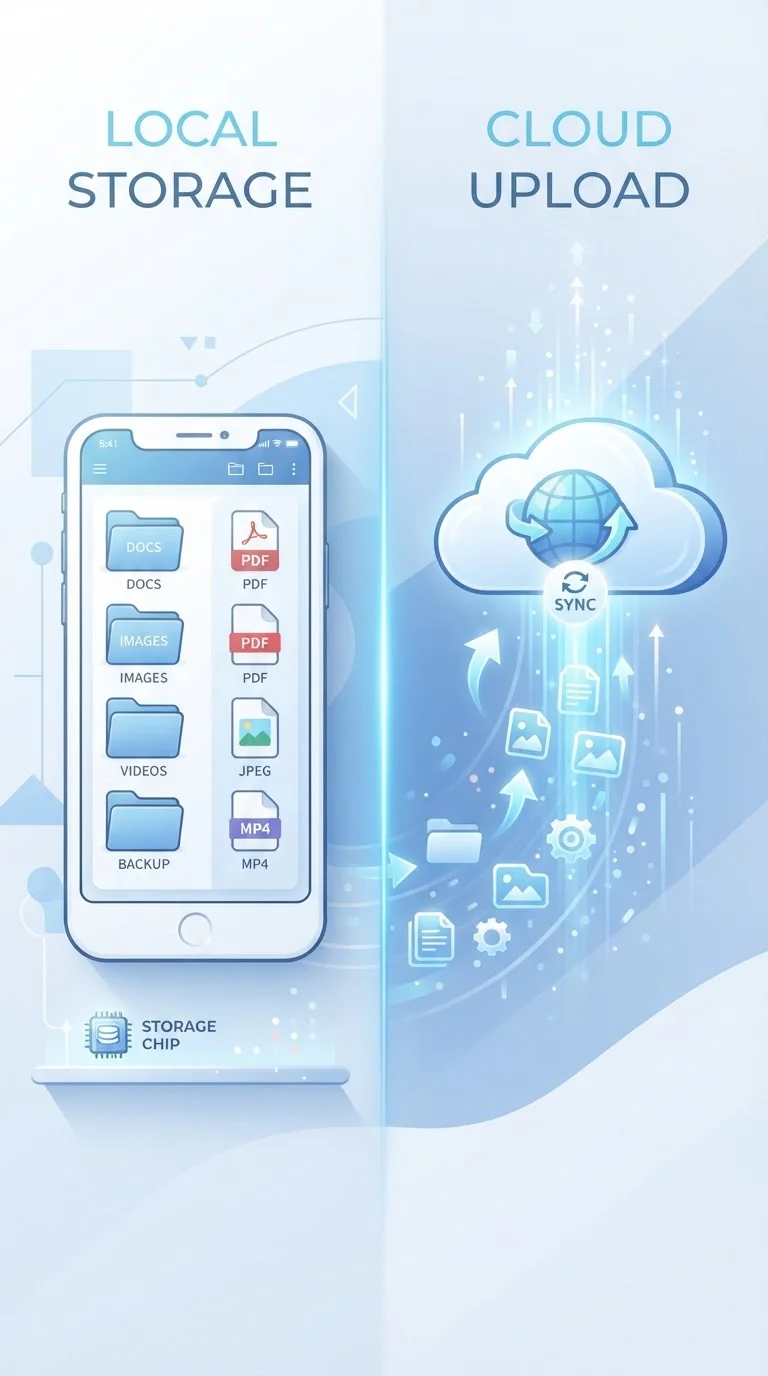
Key Takeaways
- Cloud storage keeps your files on remote servers managed by a provider; on-device storage keeps them on the phone itself.
- Cloud files are accessible anywhere with internet but depend on a third party's infrastructure and privacy practices.
- On-device storage works offline and gives you direct control, but losing or breaking your phone can mean losing the data.
- Most phones use a combination of both — understanding which is which helps you avoid surprises.
- Privacy implications differ significantly: cloud providers can potentially access or be compelled to share your data.
Option A
Cloud Storage
The remote, always-synced option.
Best for: Users who want their files accessible across multiple devices or need a backup safety net without thinking about it.
Option B
On-Device Storage
Local, private, and offline-ready.
Best for: Users who prefer keeping files fully under their control without depending on an internet connection or third-party servers.
If you use multiple devices and want seamless access to photos and files
Cloud Storage
Cloud storage syncs automatically across phones, tablets, and computers, so your files follow you without any manual transfers.
If privacy and data control are your top priority
On-Device Storage
Files that never leave your device can't be accessed by a provider's servers, reducing your exposure to third-party data handling.
If you travel frequently or have unreliable internet access
On-Device Storage
Locally stored files are available regardless of network conditions, making them more reliable when connectivity is limited.
If you're worried about losing your phone or accidental deletion
Cloud Storage
Cloud backups mean your photos and documents survive a lost, stolen, or damaged device without you having to do anything manually.
What Each Storage Type Actually Means
When you take a photo or download a document, that file has to live somewhere. On-device storage means the file sits directly on your phone's internal memory — think of it as a hard drive built into your handset. No internet required to open it, and no one else's server is involved.
Cloud storage works differently. When you save something to the cloud, your phone sends a copy of that file over the internet to a remote server operated by a company — Google, Apple, Microsoft, and others all run these services. The file you see on your phone is then a local copy or a link to that remote original, depending on your settings.
The confusion arises because most phones do both simultaneously, often without making it obvious. A photo you take might be saved locally and automatically uploaded to a cloud backup in the background. Understanding which copy you're looking at — and what happens if one disappears — is the practical point most people miss. For a broader look at how your device handles connectivity while syncing, see how mobile data and Wi-Fi work.
| Criterion | Cloud Storage | On-Device Storage |
|---|---|---|
| Where files live | Remote servers (third-party) | Your phone's internal memory |
| Internet required | Yes, to sync and access | No — works offline |
| Accessible across devices | Yes, via any signed-in device | Only on the phone itself |
| Privacy exposure | Third-party data policies apply | Stays fully under your control |
| Survives a lost/broken phone | Yes — files remain on servers | No — data may be unrecoverable |
| Storage limits | Expandable (often paid) | Fixed at purchase capacity |
| Setup required | Account creation, sign-in | None — automatic |
Privacy, Access, and the Trade-Offs Worth Knowing
The location of your data has real privacy implications. Files stored only on your device are controlled entirely by you — no provider can access them, and they aren't subject to another company's data policies or potential breaches on their servers.
Cloud storage introduces a third party. While reputable providers use encryption, your files reside on infrastructure you don't own. Depending on a provider's terms, they may scan files for policy compliance, and law enforcement can sometimes compel providers to hand over data through legal processes. That doesn't make cloud storage unsafe, but it's worth understanding the arrangement before assuming your files are completely private.
60%+
Smartphone users with automatic cloud backup enabled
Industry surveys consistently find a majority of smartphone users have at least one cloud backup service active, often set up during initial phone configuration.
~5 GB
Free cloud storage typically offered by major providers
Most major platform providers offer around 5 GB of free cloud storage per account before requiring a paid subscription for additional capacity.
On the access side, cloud storage wins for convenience: your files appear on any device you sign into. On-device storage means you only have access where the device physically is. If your phone is damaged without a cloud backup, recovering those files ranges from difficult to impossible.
For a grounded take on keeping your data protected across both storage types, smartphone security basics covers the practical steps worth taking.
How to Make Both Work Together
The most practical approach for most people isn't choosing one over the other — it's being intentional about what goes where. Sensitive documents, private photos, or anything you wouldn't want on a third-party server can stay local. Everyday photos, contacts, and files you need across devices are natural candidates for cloud backup.
Check your phone's settings to see what is currently syncing automatically. On iPhones, the iCloud settings menu shows exactly which data categories are backed up remotely. Android devices have a similar Google account backup section. Turning specific categories on or off gives you fine-grained control rather than an all-or-nothing choice.
Storage space is another factor: on-device storage is fixed at whatever capacity your phone came with, while cloud plans typically offer a small amount free and charge for additional space. Running low on local space is often what pushes people toward cloud syncing, but that shift has the privacy trade-offs described above. If app data is filling up your local storage, understanding what your apps store can help you reclaim space without sacrificing data you actually need.
Finally, good file organisation makes either approach more effective — organising your phone sensibly helps you know where things are regardless of which storage method you use.
Encryption Doesn't Mean Zero Risk
Most cloud providers encrypt your files during transmission and while stored on their servers. However, encryption protects against outside attackers — not necessarily against the provider itself, who typically holds the keys. End-to-end encrypted cloud options exist and offer stronger privacy guarantees, but they are less common as default settings. Check your provider's documentation to understand exactly what level of encryption is applied to your data.