

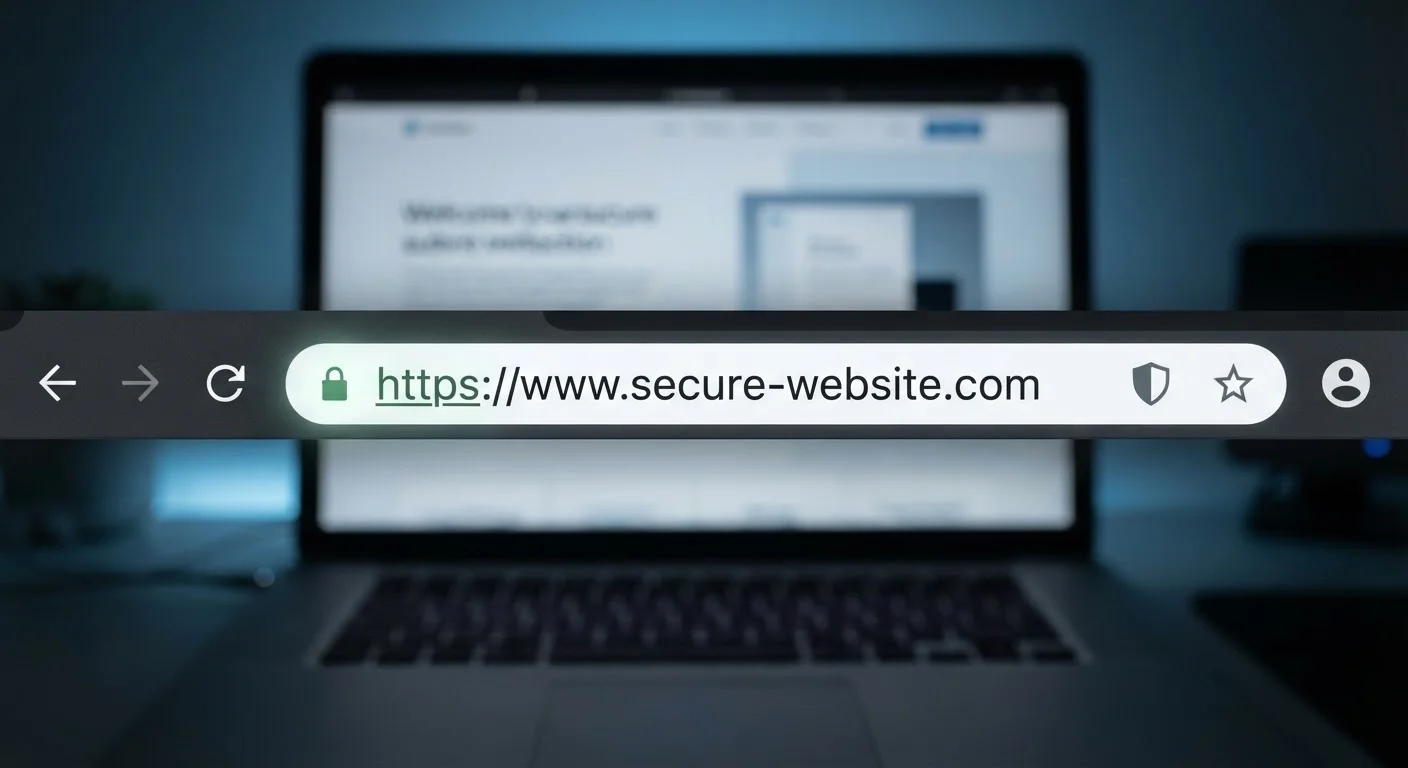
Key Takeaways
- HTTPS encrypts the data traveling between your browser and a website; HTTP does not.
- The padlock icon confirms encryption is active, not that the site itself is trustworthy or legitimate.
- Phishing and scam sites increasingly use HTTPS, so a padlock alone is never a safety guarantee.
- Always check the full domain name in the address bar, not just the padlock, before entering sensitive data.
- Modern browsers actively warn users when a site uses plain HTTP, especially on login and payment pages.
Option A
HTTP
The original, unencrypted web protocol.
Best for: Understanding why the web moved on — rarely the right choice for any modern site handling personal data.
Option B
HTTPS
The encrypted, authenticated standard for modern web browsing.
Best for: Any website where you enter information, log in, or care about the privacy of your connection.
If you're entering passwords, payment details, or personal information
HTTPS
Only HTTPS encrypts your data in transit. Submitting sensitive information over HTTP exposes it to anyone monitoring the network connection.
If you want to verify a site is completely safe to use
Neither alone — check the full domain
HTTPS confirms the connection is encrypted, not that the site's owner is honest. Scrutinize the full URL and look for other trust signals before trusting a site with your data.
If you're browsing on public Wi-Fi
HTTPS
On shared networks, HTTPS is your primary defense against eavesdropping. HTTP traffic on public Wi-Fi is readable by others on the same network.
What HTTP and HTTPS Actually Mean
HTTP stands for HyperText Transfer Protocol — the foundational system that browsers and web servers use to exchange data. When you visit a website, your browser sends a request and the server responds; HTTP governs that exchange. It's been the backbone of the web since the early 1990s.
HTTPS adds a critical layer on top: the S stands for Secure. It wraps HTTP communication inside a protocol called TLS (Transport Layer Security), which encrypts the data flowing between your browser and the website. Without that encryption, information travels as readable text — visible to anyone with the right tools on the same network path.
Think of it this way: HTTP is like sending a postcard — anyone handling it can read what's written. HTTPS is like sending a sealed, tamper-evident envelope. The contents are protected in transit, and you can verify the envelope hasn't been opened.
| Criterion | HTTP | HTTPS |
|---|---|---|
| Encryption | None — data sent as plain text | TLS encryption protects data in transit |
| Padlock icon displayed | No | Yes |
| Browser warning shown | "Not Secure" on sensitive pages | No warning |
| Confirms site is trustworthy | No | No — only confirms encrypted connection |
| Safe for login or payment pages | No | Necessary, but not sufficient alone |
| Used by legitimate modern sites | Increasingly rare | Standard across the web |
What the Padlock Icon Actually Confirms
When you see the padlock icon in your browser's address bar, it confirms one specific thing: the connection between your browser and the website is encrypted. That means data you send — form inputs, login credentials, search queries — isn't being transmitted as plain, readable text.
What the padlock does not tell you is whether the website itself is legitimate, honest, or well-run. A convincingly designed phishing site impersonating your bank can have a padlock. A site selling counterfeit goods can have a padlock. Encryption protects the data channel; it says nothing about the character of whoever is on the other end.
Phishing Sites Can Use HTTPS Too
Research from security organizations has consistently shown that a significant and growing proportion of phishing websites use HTTPS. Cybercriminals obtain legitimate security certificates — which are often free and easy to acquire — specifically to display the padlock and appear credible. The padlock tells you the connection is encrypted; it cannot tell you the site isn't a trap. Always verify the full domain name independently.
This is one of the most common misconceptions about web security. The padlock has become widely trusted as a universal safety signal, but its meaning is narrower than most people assume. It's a necessary condition for a trustworthy site — but far from sufficient. For a broader look at how privacy and security differ online, see our guide to online privacy vs. security.
How to Read Your Browser's Address Bar More Carefully
Rather than stopping at the padlock, train yourself to check two things before entering sensitive data:
- The protocol indicator: Look for
https://at the start of the URL. Modern browsers hide this by default but display it when you click into the address bar. No HTTPS? Don't enter personal data. - The full domain name: Fraudulent sites often use domains that look close to real ones — a subtle misspelling, an added word, or a different extension.
secure-paypa1.comis not PayPal. Scrutinize the exact characters betweenhttps://and the first single slash.
Browsers now actively flag HTTP pages that request sensitive input with warnings like "Not Secure." That warning is worth taking seriously. If you encounter it on a login or checkout page, pause before proceeding.
For related warning signs that a site may not be handling your data responsibly, see the subtle signs of careless data handling.
Why This Matters Even More on Public Networks
On a home network, you have some control over who accesses your router. On a public Wi-Fi network — at a café, airport, or hotel — you share that network with strangers. In that environment, unencrypted HTTP traffic is particularly exposed: a technically capable person on the same network can intercept readable data passing through it.
HTTPS significantly reduces that risk by encrypting the connection before data leaves your device. It doesn't make public Wi-Fi risk-free — there are other vectors to consider — but it closes one of the most significant openings. Public Wi-Fi carries more risk than most people realize, and understanding the role HTTPS plays is part of using shared networks more safely.
Building consistent habits around these signals — checking protocols, reading full URLs, staying alert on public networks — is the foundation of practical digital security. Staying safer online over time doesn't require deep technical knowledge, just a few reliable instincts applied consistently.
~85%
Web traffic now encrypted via HTTPS
Google's Transparency Report has tracked HTTPS adoption across Chrome browsing sessions, showing the vast majority of web traffic is now encrypted.
Growing majority
Phishing sites using HTTPS
The Anti-Phishing Working Group (APWG) has reported that well over half of phishing sites observed in recent years display the HTTPS padlock.