

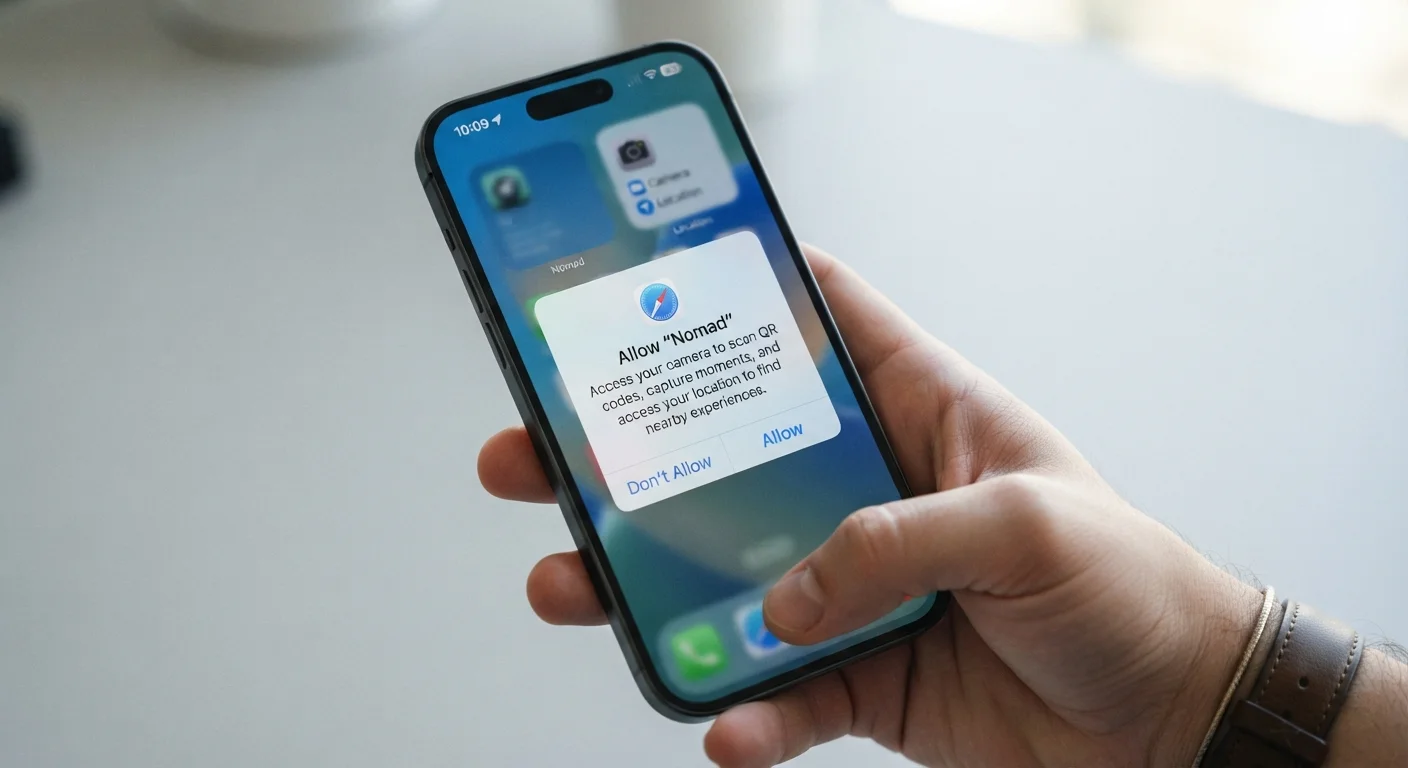
Key Takeaways
- Permissions give apps access to your hardware and personal data — they are not just formalities.
- Many apps request more access than they actually need to function.
- You can review and revoke permissions at any time through your phone's settings.
- Location, microphone, and camera permissions carry the highest privacy implications.
- Denying a permission rarely breaks an app's core functionality.
App Permissions
App permissions are requests an app makes to access specific features or data on your phone — such as your camera, microphone, location, or contacts. When you install or first open an app, it asks your consent before accessing these resources. Granting a permission gives that app ongoing access until you manually revoke it.
On both Android and iOS, permissions are enforced at the operating system level, meaning the OS acts as a gatekeeper between the app and your hardware or data. Apps cannot access a restricted resource without an explicit grant from the user.
Why Permissions Matter More Than You Think
Most people tap "Allow" on permission prompts without reading them — partly because the language is vague and partly because the pop-up appears mid-setup when you just want to use the app. But those quick taps have real consequences.
Each permission you grant is a standing authorization. A weather app you allowed to access your location two years ago may still be collecting that data in the background today. Unlike a one-time data entry, permissions often enable continuous or repeated access without any further prompt.
Understanding what each permission actually does — and whether an app has a legitimate reason to ask for it — is one of the simplest ways to protect your privacy. It also helps you get more out of the apps you use intentionally, rather than unknowingly sharing data with apps you barely open. For a broader look at how default settings can shape your experience, see hidden smartphone settings worth knowing.
iOS vs. Android: Different Defaults
iOS tends to be more restrictive by default, requiring apps to ask permission at the moment a feature is first used rather than at install. Android has adopted similar behavior in recent versions, but older Android devices may grant permissions automatically at installation. If you're on an older Android version, manually reviewing permissions after installing any new app is especially worthwhile.
The Permissions That Carry the Most Risk
Not all permissions are equal. Some access features that are low-stakes; others open a direct window into sensitive areas of your life.
- Location: The highest-sensitivity permission for most users. Precise location reveals where you live, work, worship, seek medical care, and more. Apps like maps or ride-sharing genuinely need it; most others do not.
- Microphone: Allows the app to record audio. A voice recorder or video-calling app needs this. A recipe app asking for microphone access has no obvious justification.
- Camera: Required for photo and video features, but some apps request it without any visible camera function. When in doubt, deny it and see if the app still does what you need.
- Contacts: Grants access to everyone in your address book — not just your own data, but other people's. Be cautious about which apps can see this list.
- Notifications: While not a data permission, notification access can be exploited to push unwanted content or create a false sense of urgency through excessive alerts.
45%
Apps requesting more permissions than necessary
Research by privacy advocacy groups has consistently found that a large share of popular mobile apps request permissions beyond what their stated features require.
1 in 3
Users who review app permissions regularly
Surveys on mobile privacy behavior suggest that most smartphone users never return to review permissions after initially granting them at install.
How to Evaluate Whether a Permission Request Is Reasonable
The core question to ask is: does this feature require this access to work? A photo-editing app needs your camera roll. A flashlight app needs neither your contacts nor your location. When the connection between the app's purpose and its request isn't obvious, that's a signal worth pausing on.
A few practical guidelines:
- Match the permission to the feature. If you can't explain why an app needs a given permission based on what it does, that's a red flag.
- Choose limited access when available. Both iOS and Android now let you grant access to specific photos rather than your entire library, or allow location only while the app is open.
- Revisit permissions periodically. Apps update frequently, and new permissions can be added over time. A quick audit every few months is worthwhile.
Schedule a Quick Permissions Audit
Set a reminder every few months to open your phone's privacy settings and scroll through permissions by category. Look for apps you rarely use that still have access to location, microphone, or camera — these are the easiest wins. Removing access from dormant apps takes seconds and meaningfully reduces your data exposure.
This same scrutiny applies more broadly to your digital habits — from browser privacy settings to the apps you keep installed in the first place.
Revoking Permissions You've Already Granted
Changing your mind is easy and has no permanent consequences. On iPhone, navigate to Settings → Privacy & Security, then select a permission category (such as Location Services or Microphone) to see every app with access and toggle it off. On Android, go to Settings → Apps, choose the app, and tap Permissions to adjust each one individually.
If an app stops working after you revoke a permission, that tells you the permission was genuinely needed. In that case, you can re-grant it — ideally using the most limited option available, such as "While Using" instead of "Always" for location. The app will not notify you that you've revoked access, and it cannot re-request it automatically. The control stays with you.